
Creating a Pull Request in Brokk
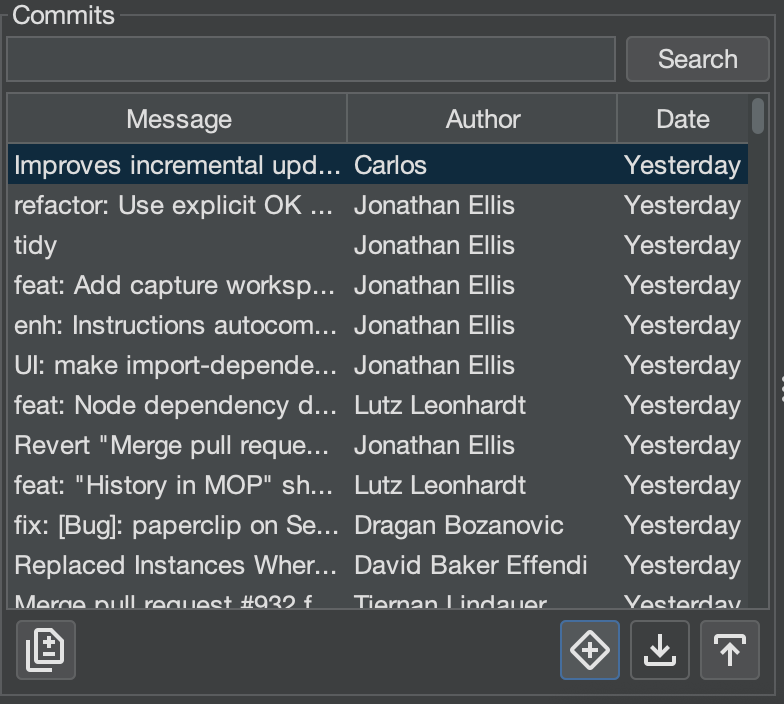
Brokk lets you raise a GitHub Pull Request (PR) from any branch local or remote without leaving the application. You’ll see the Create PR button (+ surrounded by a diamond) in the Log tab whenever your project is a Git repository.
Opening the Create PR Dialog
- Open the Log tab
- In the Branches, Local or Remote list within the commits section select the branch you want to merge.
- Click + button.
Dialog Layout
Purpose
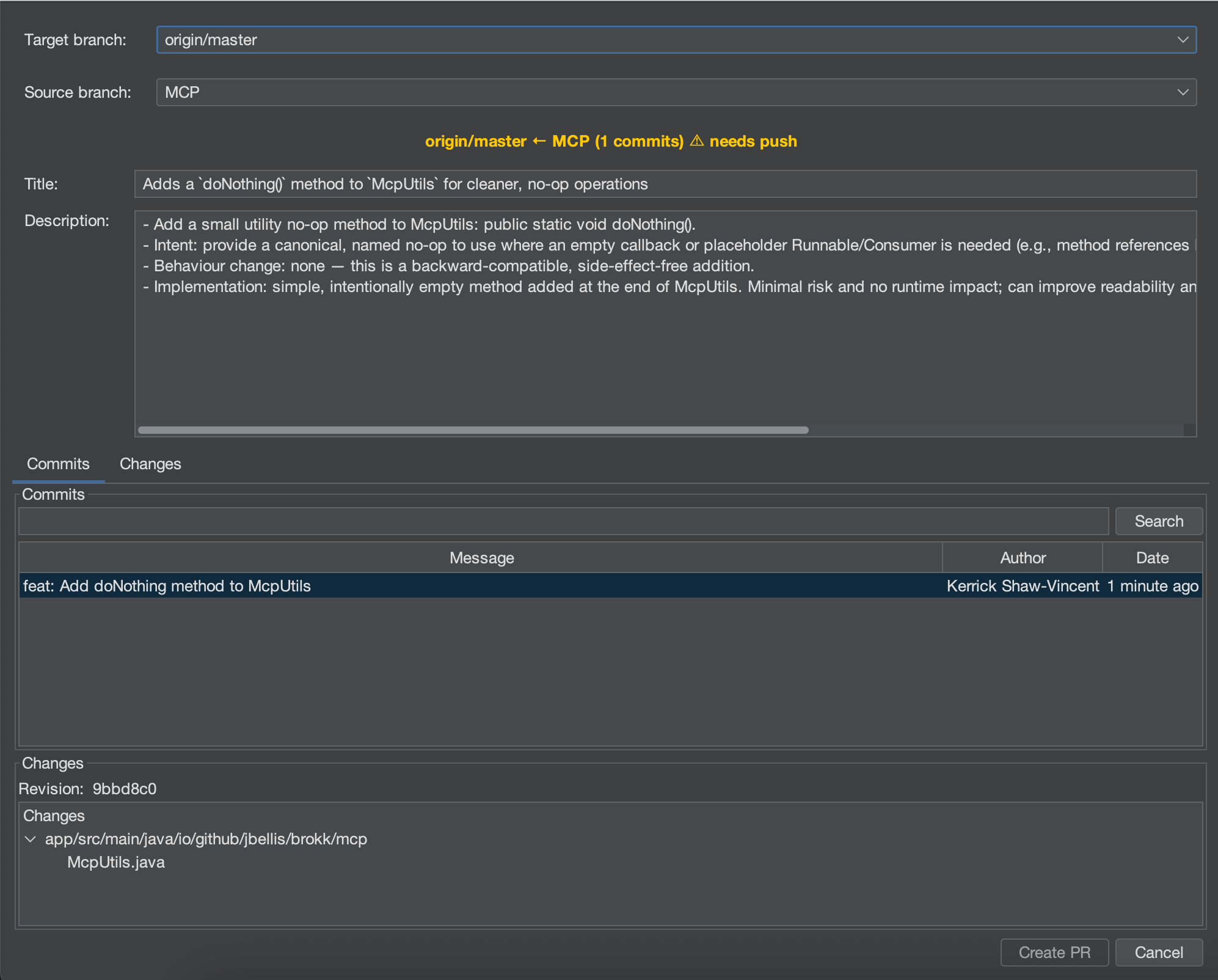
Brokk’s Create PR dialog gives you everything you need to scope, describe, and review your pull request without context‑switching.
Header
- Target branch – the branch you’re merging into.
- Source branch – the branch you’re merging from (local or remote).
Title & Description
- Auto‑generated in Markdown by Brokk’s quick‑model.
- Edit both fields as needed.
Tabs
- Commits – lists commits that differ from the target branch.
- Changes – shows a file‑level diff across those commits.
Footer
- Create PR / Cancel actions.
- A yellow warning icon appears if local and remote branches are out‑of‑sync.
Branch & Commit Indicators
- Blue‑highlighted commits → local commits not yet pushed
- No upstream branch → the first push automatically creates one
- Sync warning → push or pull to resolve before creating the PR
Typical Workflow
- Finish work on your feature branch
- Open Log, select the branch, and push if there are blue (unpushed) commits
- Click Create PR
- (Optional) Change the Target or Source branch—Title and Description will refresh
- Review the Commits and Changes tabs
- Edit Title/Description if required
- Click Create PR—Brokk opens the new PR in your default browser
Next: Sessions and History